The Google Calendar Setup Nobody Taught You

I studied architecture. Not buildings. Structures. The logic of how constraints become decisions, how decisions become spaces, and how spaces shape the lives of the people inside them.

The first thing they teach you in architecture school is that the tool doesn't design the building. You design the building, then you pick up the tool. Most people do the exact opposite with their calendar. They open Google Calendar, start dumping events into it, and three years later they're staring at a screen full of colored blocks wondering why every week feels the same kind of exhausting.
Google Calendar is not a notepad. It's an operating system for your time. And like any operating system, it needs to be configured before it's useful. Out of the box, the defaults are wrong, the structure is missing, and the features that would actually help you are buried three menus deep.
This is the setup I build for every client. It takes about an hour. It changes how the rest of their year works.
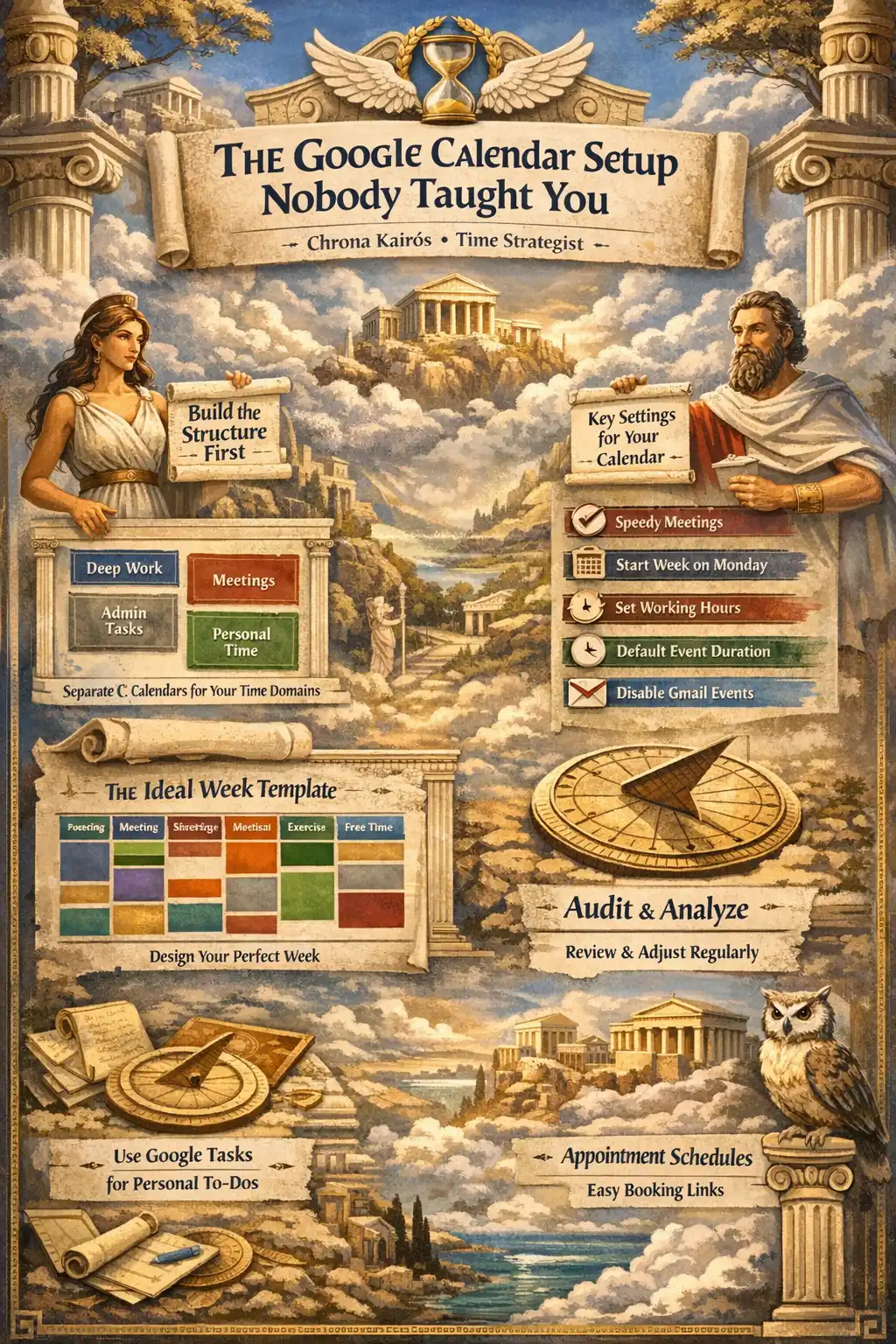
Build the structure first
Before you touch a single event, you need architecture.
Most people have one calendar. Maybe two if they've separated "Work" and "Personal." This is like designing a house with one room. Technically functional. Practically unlivable.
Create separate calendars for each major domain of your time. Not twenty. Five to seven. Here's what I typically build for clients:
- Deep Work (blue, or whatever color reads as "focus" to you)
- Meetings (a visible, slightly aggressive color. Red or orange. You want meetings to stand out because they should feel like they're taking something.)
- Admin/Shallow Work (grey or muted. Emails, invoices, errands. Necessary but low-energy.)
- Personal (green. Health, family, friends, the things that exist outside work.)
- Blocked/Do Not Book (dark. The slots where nothing goes, by design.)
Each calendar gets its own color. The point is not decoration. The point is the glance test: can you look at your week and, in two seconds, see what kind of week it is? If it's all red (meetings), you have a problem. If there's no blue (deep work), you have a different problem. Color turns your calendar into a dashboard.
One important detail: color-code by energy type, not by project. "Project Alpha" in green and "Project Beta" in yellow tells you nothing about how your week feels. But "deep work" in blue and "meetings" in red tells you immediately whether your week has room to think.
Michael Hyatt calls this treating your calendar like a budget. You have a finite number of hours. Every block you allocate to one thing is a block you can't spend on something else. When you see it in color, the tradeoffs become visceral.
To create new calendars: left sidebar, the "+" next to "Other calendars," then "Create new calendar." Takes thirty seconds per calendar. You'll never go back.
Five settings that change everything
There are settings in Google Calendar that most people never touch. Five of them are genuinely transformative.
1. Speedy meetings.
Settings (gear icon), Event Settings, check "Speedy meetings." This automatically shortens every meeting you create. Thirty-minute meetings become twenty-five. Sixty-minute meetings become fifty. The rule: meetings under forty-five minutes lose five minutes; longer meetings lose ten.
This is, by a wide margin, the single most impactful setting in Google Calendar. Those five minutes between back-to-back meetings are the difference between arriving at the next call frazzled and arriving human. Over a day with six meetings, you reclaim thirty to sixty minutes. Over a year, it's weeks.
I enable this for every single client. Most of them text me within a week to say it changed their day.
2. Start of week: Monday.
Settings, General, "Start of week," change from Sunday to Monday. The default is Sunday because Google is American. Your brain plans in Monday-to-Friday weeks. Make your calendar match how you actually think.
3. Working Hours.
Settings, General, "Working hours & location." Define when you're available, per day. Anyone trying to schedule outside those hours sees a warning. If you enable auto-decline, meetings outside your working hours get rejected automatically.
This is how you draw a boundary without having the awkward conversation. Your calendar says no for you. Set it once, and every scheduling request respects it (or at least acknowledges that it doesn't).
If you work hybrid, the "Working location" feature lets you set where you are each day (office, home, custom). Your team can see who's where without asking.
4. Default event duration.
Settings, Event Settings, "Default duration." Change it from thirty minutes to twenty-five (or fifteen, depending on your work). The default of thirty is why most meetings are thirty minutes. It's not because thirty is the right length. It's because Google picked that number and nobody changed it. Your meetings should be as long as they need to be, not as long as the default says.
5. Events from Gmail: restrict or disable.
Settings, "Events from Gmail." By default, Google automatically creates calendar events from emails (flight confirmations, hotel bookings, restaurant reservations). Useful, but also the main vector for calendar spam. Scammers send emails with event data that auto-appear on your calendar. Change this to "Only show events from senders in my contacts" or disable it entirely and add events manually. Three seconds of prevention saves you from phishing events you didn't ask for.
The ideal week template
This is the part where architecture meets planning.
Create a sixth calendar called "Template" (or "Ideal Week," whatever you prefer). Make it a pale, semi-transparent color. Then fill it with your ideal week: what your time looks like when you control 100% of it.
Recurring deep work blocks every morning, 9 to 11. A meeting window from 2 to 4 in the afternoon. Admin batch on Friday morning. Lunch that actually lasts an hour. Exercise three times a week. An empty slot on Wednesday afternoon for thinking, reading, or nothing at all.
This template is not your schedule. It's your baseline. Your blueprint. It sits underneath your real calendar, and the gap between the two tells you exactly where your time is leaking.
When someone tries to book over your deep work block, the answer is: "I have a conflict." Not "let me move my thing." Not "I was just going to do some work, it can wait." You have a conflict. The block is real. Treat it like a meeting with someone you respect, because the someone is you.
Laura Vanderkam, who studies how people spend time, recommends reviewing your ideal week against your actual week every quarter. The drift is always revealing. Deep work blocks that got eaten by "quick syncs." Exercise sessions that became optional. Lunch that shrank to fifteen minutes at the desk. The template makes the erosion visible.
Focus Time and meeting hygiene
Google Calendar has a feature called Focus Time (available on Workspace accounts). It creates a special block on your calendar that does three things: it's visually distinct, it automatically declines conflicting meeting invitations, and it mutes your Google Chat notifications.
That middle feature is the one that matters. You're not just blocking time. You're telling everyone else's scheduling system that you're not available. The meeting invite bounces back with a message. You don't have to explain, justify, or apologize. The calendar handles it.
Make Focus Time recurring. Every weekday morning, 9 to 11. Or whatever your peak focus window is. Lock it in and let the system defend it.
For meetings that do make it onto your calendar, three filters:
Is a decision being made? If no decision will happen, this isn't a meeting. It's a broadcast. Write a memo.
Are you essential to that decision? If you're there "for visibility" or "to stay in the loop," you're a spectator. Read the notes after.
Could this be resolved in five minutes asynchronously? Most "quick questions" don't need a thirty-minute block. Send a message.
These three questions, applied honestly, eliminate roughly half of most people's meetings. The ones that survive are shorter, sharper, and actually worth showing up for.
One more thing: audit your recurring meetings quarterly. Every standing meeting should justify its continued existence. List them all. Rate each one from 1 to 5 on value delivered. Anything below a 3, kill it. One practitioner reported a 27% decrease in meetings after a single audit. The meetings didn't protest.
Google Tasks: the missing half
Here's a feature sitting in plain sight that most people ignore: Google Tasks, integrated directly into Calendar.
Click the Tasks icon in the right sidebar. Create a task with a due date and time. It appears on your calendar alongside your events. Not as a vague reminder floating somewhere in your phone, but as a concrete block on the same timeline where you plan everything else.
This solves a real problem. Events are commitments to others (meetings, calls, appointments). Tasks are commitments to yourself (write the report, review the contract, send the invoice). Most people track the first kind religiously and the second kind on sticky notes that migrate around their desk until they disintegrate. Putting both on the same calendar means both get treated as real.
The killer feature: Gmail to Task conversion. Open an email that requires action. Click "Add to Tasks" (or drag it into the Tasks sidebar). Google creates a task with a link back to the original email. Set a due date. It shows up on your calendar. When you get to that time block, the task is there, linked to the email, ready to go. No copying, no context-switching, no "where was that thing I needed to do?"
If you've been using Google Reminders, note that Google is migrating everything to Tasks. Reminders are being deprecated. Move now, before the migration does it for you.
The synthesis I recommend: hard commitments (meetings, deadlines) live as calendar events. Tasks live on your task list, organized by project or context. During your morning planning session (ten minutes, max), pull the day's tasks into your deep work blocks. This gives you Cal Newport's time-blocking structure with David Allen's flexible task management. The best of both systems, inside one tool.
The weekly audit
Every Friday, fifteen minutes. That's all it takes.
Google Calendar has a built-in analytics feature called Time Insights (left sidebar on desktop, Workspace accounts). It shows you: total meeting hours this week, daily average, busiest meeting day, recurring vs. one-off meetings breakdown, and the people you spent the most time with.
Most people have never opened this panel. Open it. The numbers are usually sobering.
What to look for:
Meeting load as a percentage of work hours. If more than 40% of your work hours are meetings, you don't have time to do what the meetings decide. You're all discussion and no execution.
Deep work ratio. Can you find at least one contiguous block of two or more hours on each day? If not, your calendar is too fragmented for anything that requires real thinking.
Recurring meeting dominance. If most of your meeting hours are recurring (standing meetings, weeklies, syncs), that's inertia, not strategy. Each one was created for a reason. Ask whether that reason still exists.
Buffer time. Are there transitions between meetings, or is everything back-to-back? Without buffer, you arrive at each meeting carrying the cognitive residue of the last one.
Check these numbers against your ideal week template. The gap is your calendar debt, the accumulated cost of saying yes to things that should have been a no. Like financial debt, it compounds. And like financial debt, the first step to paying it off is knowing the number.
Appointment Schedules: the free Calendly
One last feature that saves an absurd amount of time: Appointment Schedules. This is Google's built-in version of Calendly, and it's free for all Google accounts.
Create, click "Appointment schedule." Set duration, available hours, buffer time between appointments, and maximum bookings per day. Google generates a shareable link. Send it to anyone who needs to book time with you. They see your available slots (without seeing your actual calendar), pick one, and the event appears on both calendars. Done.
No more "when are you free?" email chains. No more proposing three times and getting back "none of those work." No more paying for a third-party scheduling tool for something your calendar already does.
Put the link in your email signature. Share it with clients, collaborators, anyone who regularly needs time with you. The time you save on scheduling logistics alone pays for the five minutes it takes to set up.
On the wrist
I'll keep this brief because this article is about the calendar, not the watch. But there's a reason I wear a Garmin with my Google Calendar synced to it.
Everything we just built (the structure, the color coding, the focus blocks, the tasks) collapses into a single line on your wrist: the next thing. Next meeting in 45 minutes. Deep work block until 11. Nothing until 2pm.
That's it. No phone to unlock, no notification tray, no inbox pulling you sideways. Just the next thing, and how long until it starts. The honest feedback loop.
KairosEye connects directly to Google Calendar with a one-click OAuth setup. Your next event is on the watch face, alongside time and weather. Three pieces of information. The three that matter.
My father thinks this is an absurd amount of engineering to accomplish what a wall clock and a window already provide. He's not entirely wrong. But he also doesn't have forty clients whose calendars need architecturing every quarter.
January 1st
I write once a year. This year, for the first time, I wrote something practical instead of philosophical. Not because I've run out of things to say about time (ask anyone who's shared a café table with me) but because I've spent four years watching people nod along to "do less" and "protect your time" and then go back to the same broken calendar on Monday morning.
The ideas don't fail. The implementation does. And the implementation fails because nobody taught you how to set up the tool.
Your calendar is the most honest portrait of your priorities. Not what you say matters. What you schedule matters. And a calendar without architecture is a building without a blueprint: it stands, technically, but nobody wants to live in it.
Spend an hour. Build the structure. Change the settings. Create the template. Set up the audit.
Then watch what happens to the other 8,759 hours of your year.