Quick Start
This guide covers KairosEye v2 (Google Calendar OAuth). If you're on v1, your setup is different — go to the v1 Quick Start →
Not sure which version you have? Check the Garmin Connect IQ store: the current version is v2.
This guide walks you through connecting KairosEye to your Google Calendar and linking your Garmin watch — in about 2 minutes.
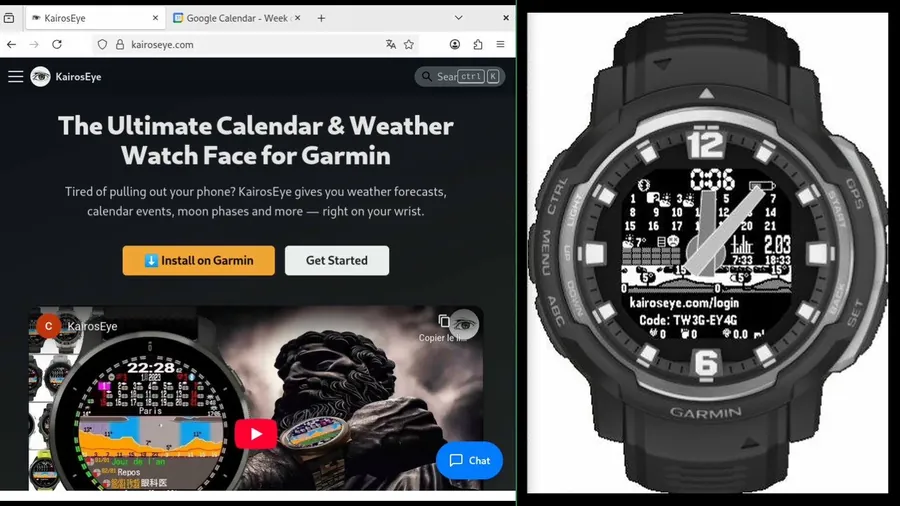
Step 1 — Go to kairoseye.com and log in
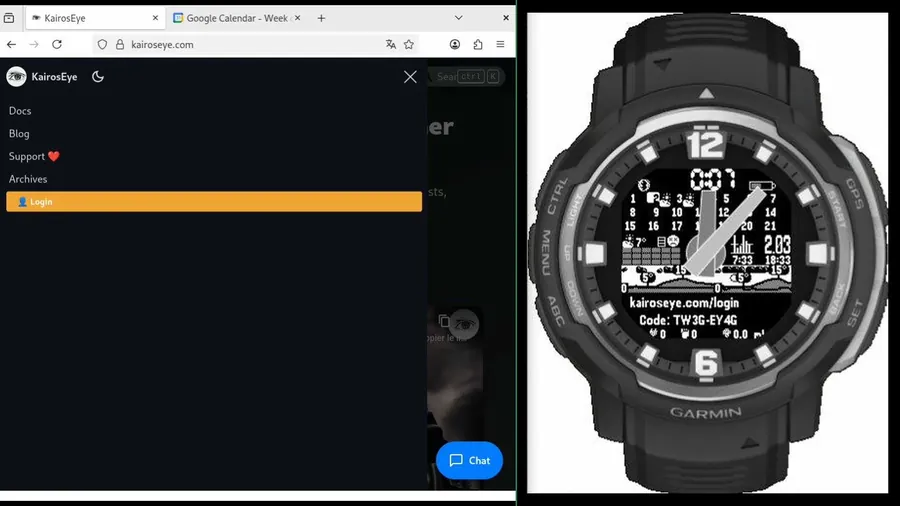
Open kairoseye.com in your browser, then open the menu and click Login.
Step 2 — Sign in with Google
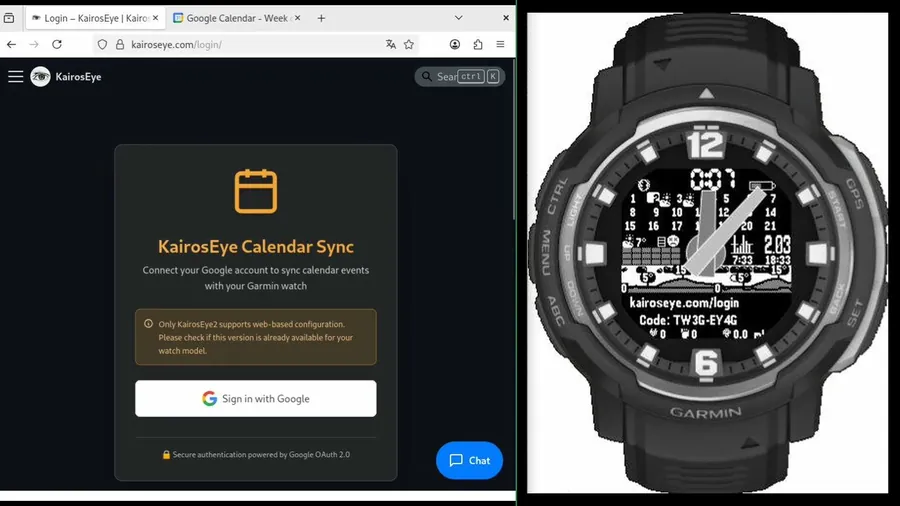
On the login page, click Sign in with Google.
Step 3 — Authorize Google Calendar access
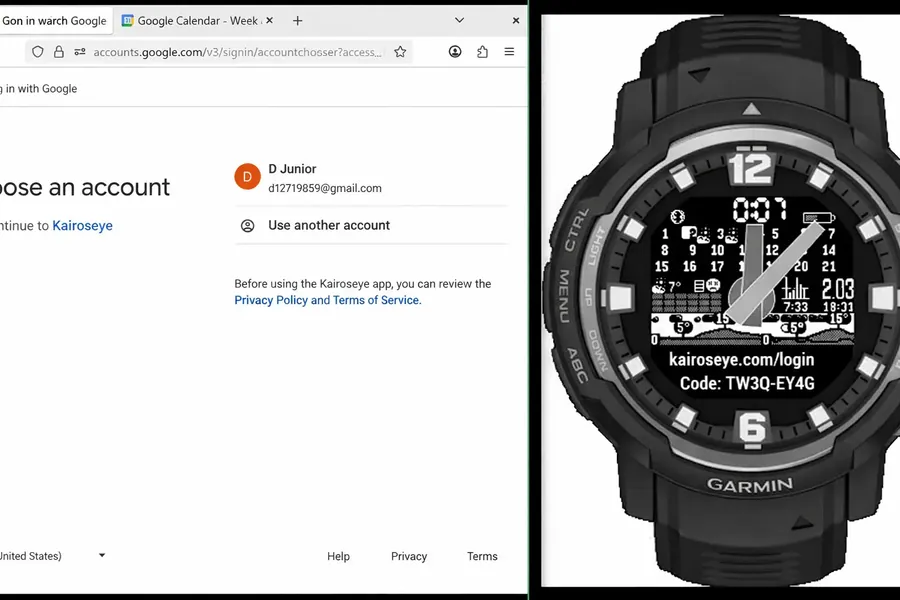
Select your Google account, then accept the permissions so KairosEye can read your calendar events.
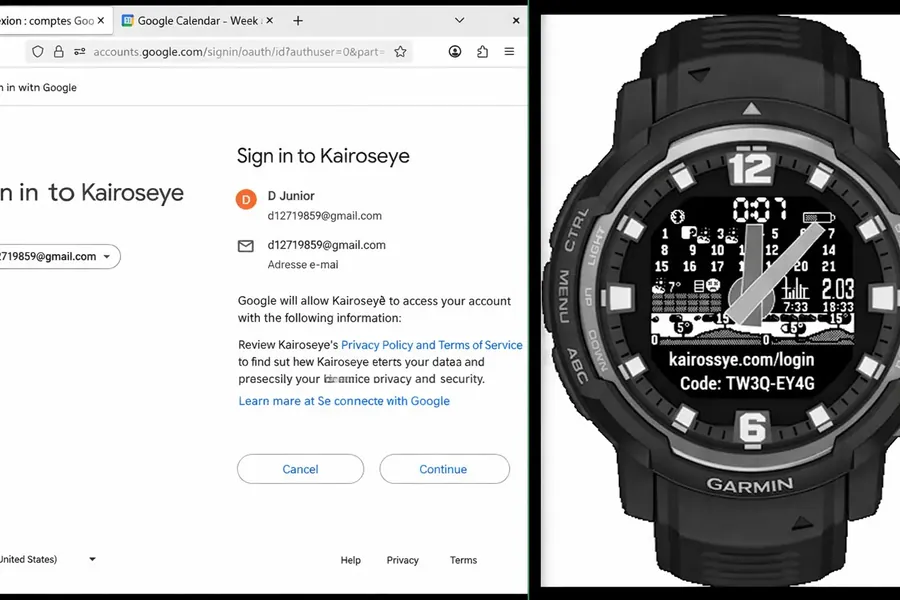
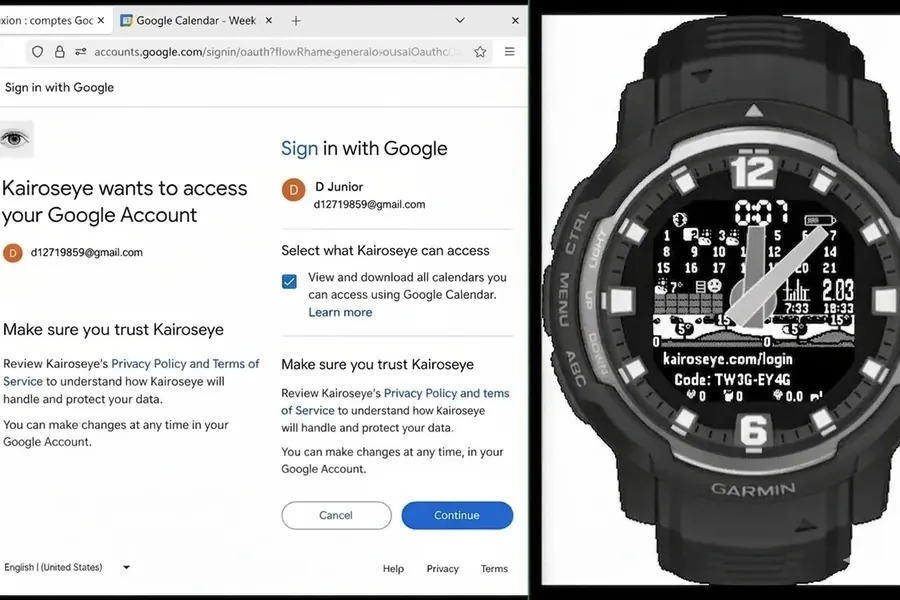
Step 4 — Select your calendars
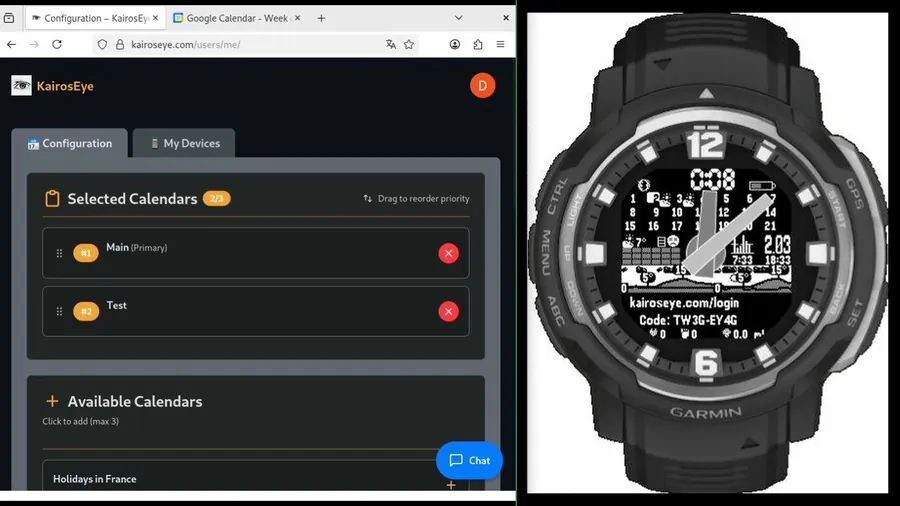
Once logged in, go to the Configuration tab. Under Available Calendars, click the + next to each calendar you want to sync (up to 3).
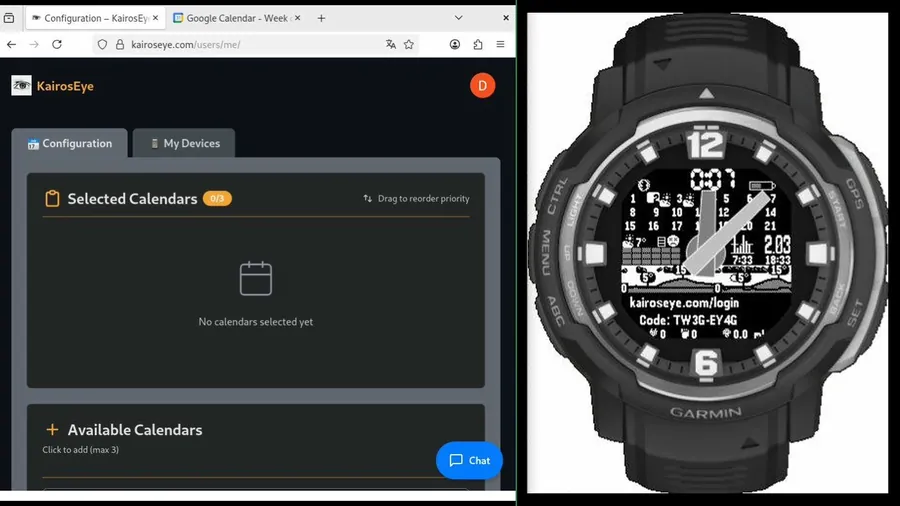
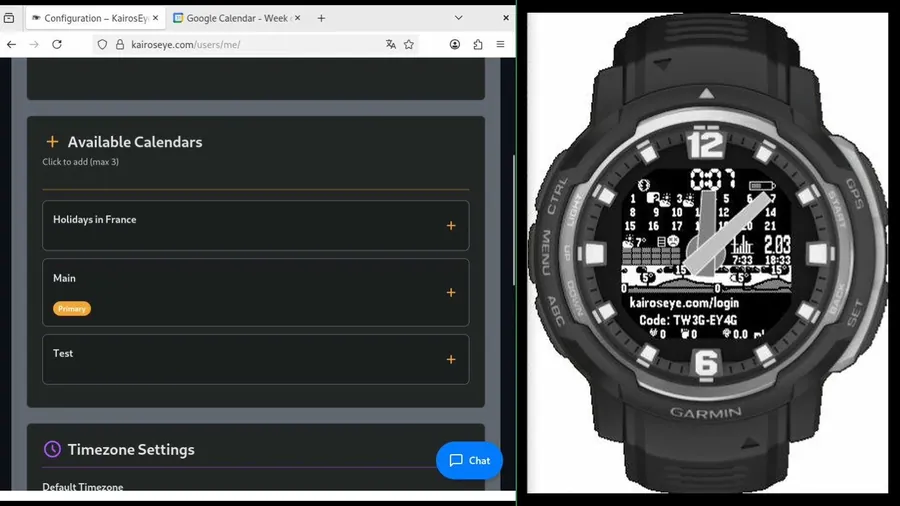
Step 5 — Link your Garmin watch
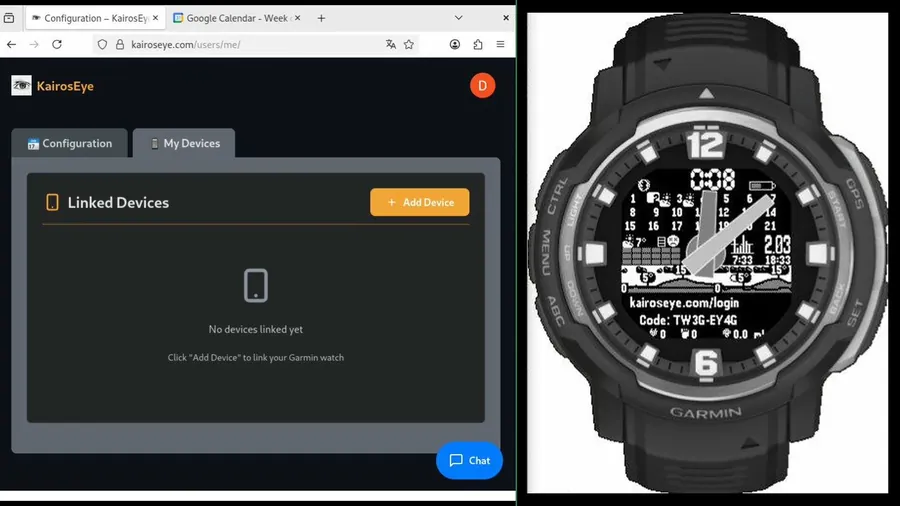
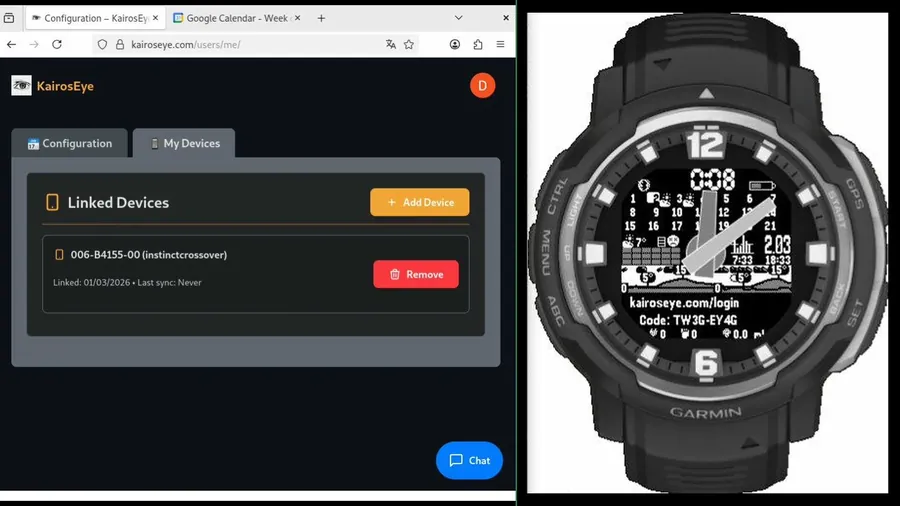
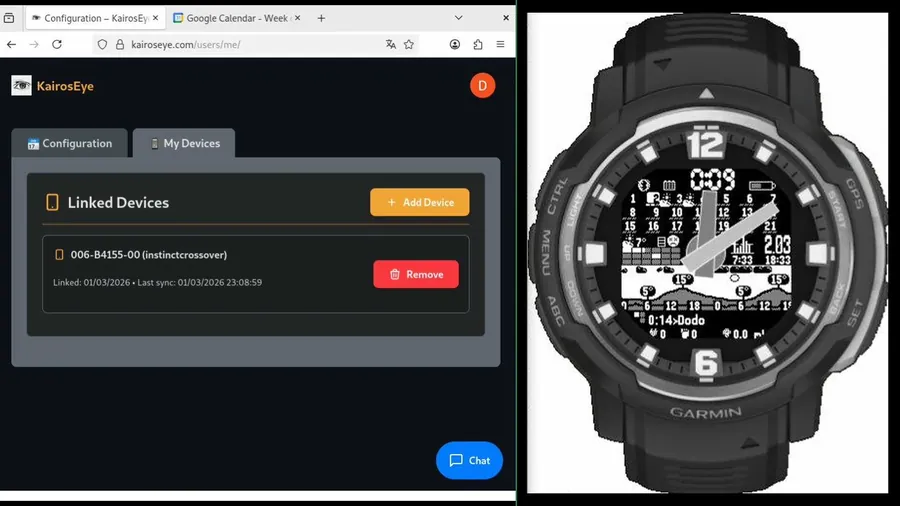
Go to the My Devices tab. No watch is linked yet — click Add Device.
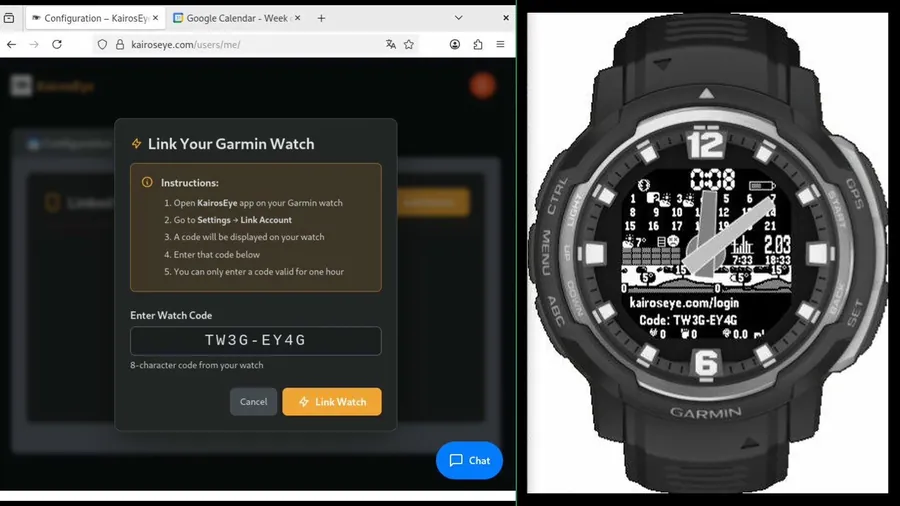
A modal appears asking for a Watch Code. You'll find this code on your watch:
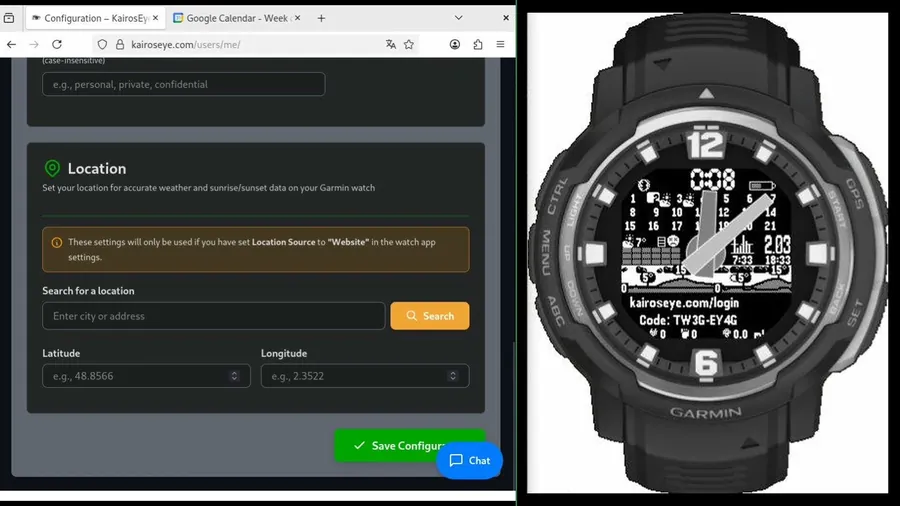
On your Garmin, open the KairosEye app → the screen displays
kairoseye.com/loginand a 8-character code.
Enter the code in the field and click Link Watch.
Your watch is now linked — Last sync: Never means the first sync hasn't happened yet.
Step 6 — Add an event in Google Calendar
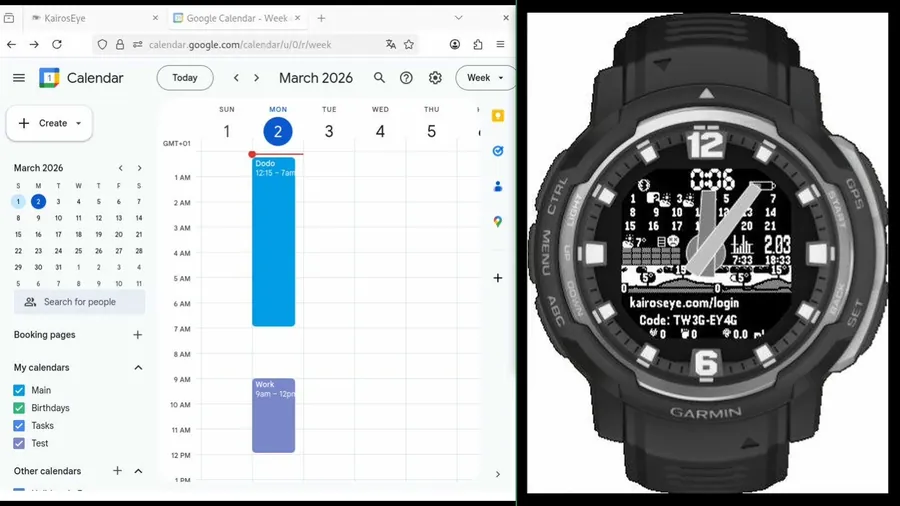
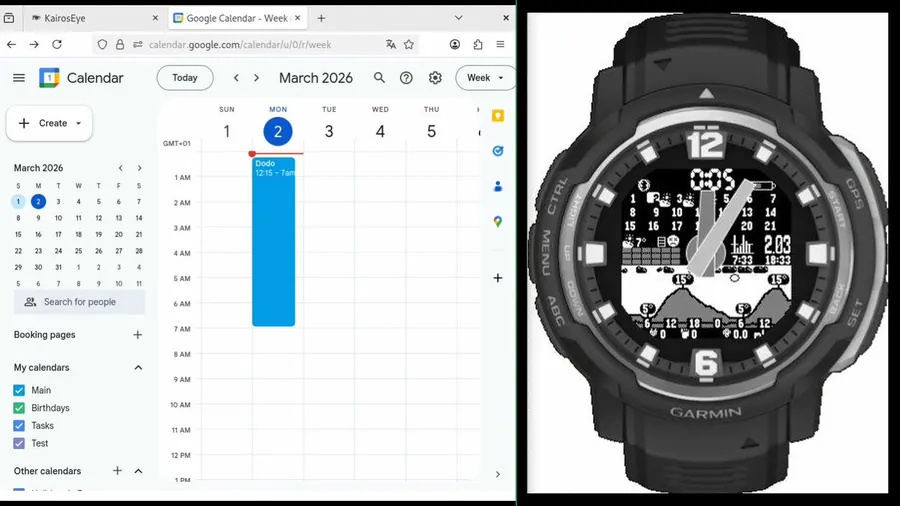
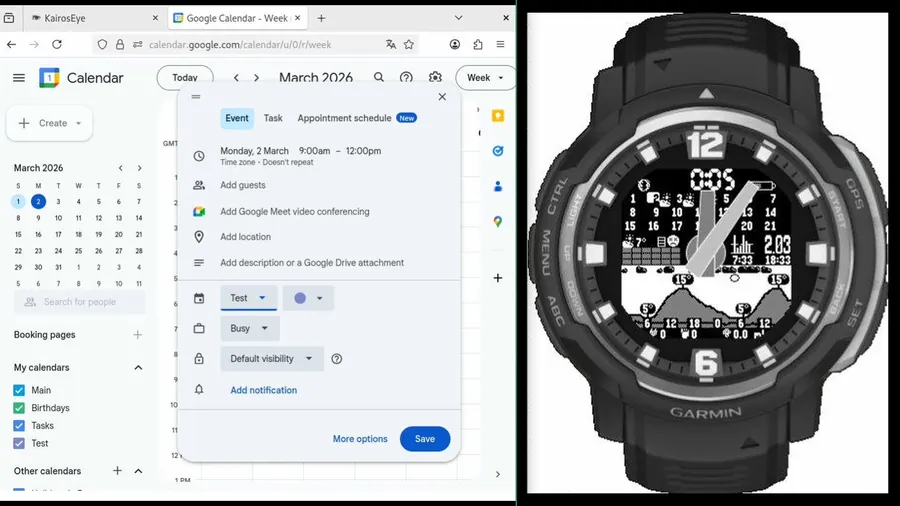
Open Google Calendar and add an event. KairosEye will sync it automatically on the next sync cycle.
Step 7 — Your event appears on the watch
After the sync, your calendar event shows up directly on the watch face.
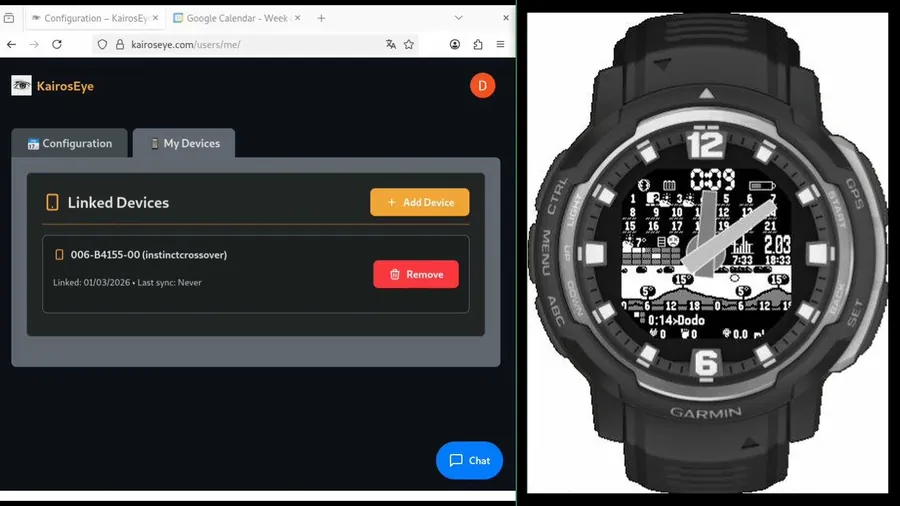
The My Devices tab confirms the last sync timestamp.
Step 8 — (Optional) Set your location
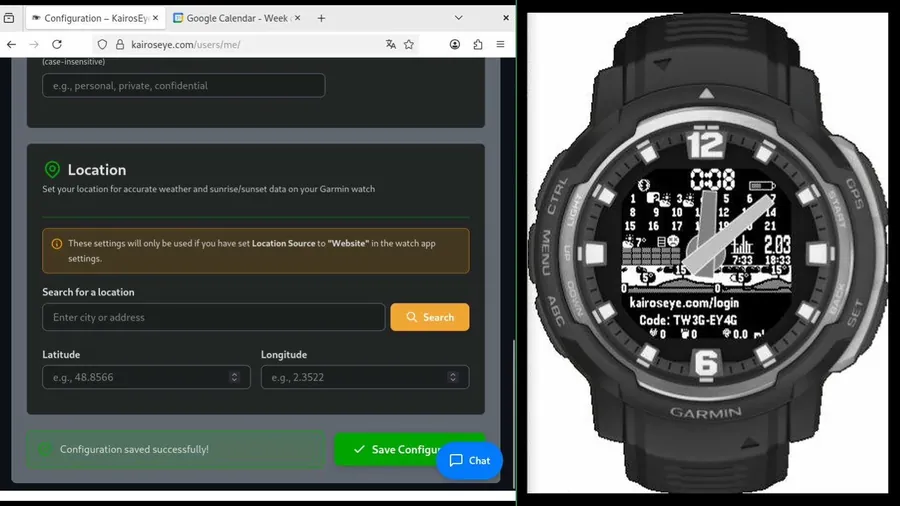
If you use weather data from the KairosEye website (Location Source = "Website" in watch settings), scroll down in Configuration to the Location section, search for your city, and click Save Configuration.
Done!
KairosEye is now connected to your Google Calendar. Your events and weather will sync automatically.
- Need help? Browse the FAQ
- Questions? Discord #support
- Contact: [email protected]